BY NYC Energy Code Team
ON
28 October 2026
How to Fix Missing or Duplicate Utility Meter Data in Portfolio Manager

A building manager uploads a year's worth of electricity bills into ENERGY STAR Portfolio Manager, checks the annual consumption, and prepares the benchmarking report. Then an alert appears: the meter has gaps or overlapping billing dates.
The problem may seem minor. Perhaps one bill was missed, two entries cover the same dates, or a corrected utility statement was imported twice. But even a small data error can make the building's reported energy performance unreliable.
For a New York City property, these mistakes matter because Local Law 84 (LL84) requires covered buildings to report whole-building energy consumption annually. Missing or duplicated records can distort reported energy use, affect Energy Use Intensity (EUI), or prevent relevant metrics from being calculated.
The correct solution is to reconcile each meter against the original utility records before editing the data. The goal is not simply to remove warnings. It is to ensure that every relevant day is covered, consumption is counted correctly, and the reporting period matches the property's actual energy use.
ENERGY STAR Portfolio Manager Data Alert Rules
ENERGY STAR Portfolio Manager identifies both gaps and overlaps as common meter-data errors. It also warns when a meter lacks the required full calendar months of data. Learn more directly from the ENERGY STAR Portfolio Manager Help platform.
What Is the Difference Between a Missing Bill and a Duplicate Entry?
Before making changes, identify which error Portfolio Manager is reporting. These problems look similar in a data-quality report but require different corrections.
| Data Problem | What It Means | Typical Example |
|---|---|---|
| Missing meter data | One or more dates are not covered by a billing entry | Bills cover January 1–31 and March 1–31, leaving February unaccounted for |
| Overlapping meter dates | The same date is included in multiple billing entries | One bill covers March 1–31 and another also includes March 31 |
| Duplicate consumption record | The same consumption has been entered more than once | A utility statement was imported twice for the same account and period |
| Incomplete calendar-year coverage | The records do not cover the entire reporting year | Consumption data starts in January but ends in November |
| Incorrect meter active dates | The meter's recorded start or stop date conflicts with its billing entries | A meter is marked inactive before its final bill ends |
A gap means that consumption for some dates may be missing. An overlap means that one or more dates are represented more than once. A duplicate consumption record can produce incorrect totals even when the entries appear to be valid individually.
The key distinction is that overlapping dates are a warning about coverage, while duplicate consumption is a warning about what may have been counted more than once. Both require checking the original records.
Step 1: Run the Portfolio Manager Data Error Checker
Start with the property's own data-quality report rather than searching manually through every utility bill.
1
Access Your Account
Log in to ENERGY STAR Portfolio Manager.
2
Select Property
Open the specific building property you need to correct.
3
Navigate to Summary
Go to the property's Summary tab.
4
Locate Error Checker
Find the Check for Possible Data Errors tool on the page.
5
Run Checker & Review
Run the checker for the relevant reporting period and review all generated alerts.
6
Inspect Affected Meters
Follow the links or instructions identifying each affected meter individually.
The exact interface can change, but the Summary tab's error checker is the standard starting point described in Portfolio Manager guidance.
Record the affected meter names, energy sources, and dates before making any changes. If a property has separate electricity, natural gas, fuel-oil, or other meters, review each affected meter individually.
For NYC benchmarking, the city specifically directs owners to use Portfolio Manager's error checker and resolve relevant alerts before submitting the report. See details at NYC DOB — Local Law 84 Benchmarking.
Step 2: How to Fix Missing Utility Meter Data
A gap occurs when no billing entry covers one or more dates in the meter's timeline.
For example, imagine the electricity records show:
| Billing Period | Status in Portfolio Manager |
|---|---|
| January 1–31 | Entered |
| February 1–28 | Missing (Data Gap) |
| March 1–31 | Entered |
The issue is not necessarily that the building used no electricity in February. It may simply mean the bill was never entered, the data upload failed, or the meter history was incomplete.
Locate the Missing Billing Period
First, obtain the original utility statements or download the meter's consumption history from the utility provider. Compare the start and end dates of the source records with the dates entered in Portfolio Manager.
Check whether a bill is missing entirely or whether the problem is caused by an incorrect date, a meter activation date, or a record that was not included in the reporting data.
If a bill exists but was never entered, add it to the affected meter. If the utility statement is unavailable, request the missing consumption data from the utility rather than inventing a value.
Add the Missing Entry
The usual Portfolio Manager workflow is:
- Open the property's Energy tab, or the appropriate tab for water or waste.
- Select the affected meter.
- Open its meter entries or Manage Bills page.
- Click Add Another Entry.
- Enter the billing period and consumption shown on the source statement.
- Save the changes using Save Bills.
Use the units appropriate to that meter, such as kWh for electricity or therms for natural gas. Confirm that the dates and usage values match the original record.
If the bill has been estimated by the utility, mark the entry as estimated where appropriate. Do not present an estimate as an actual meter reading.
What If the Original Bill Cannot Be Obtained?
Do not fill a gap with a guessed consumption figure simply to eliminate the alert.
Ask the utility for the relevant statement or consumption history. If the information is genuinely unavailable, consult the applicable Portfolio Manager guidance and, for NYC reporting, the Sustainability Help Center about acceptable handling.
A documented estimate may be appropriate in some circumstances, but it should be based on a defensible method and identified correctly. An estimate is not equivalent to verified actual consumption.
Step 3: How to Fix Duplicate or Overlapping Meter Entries
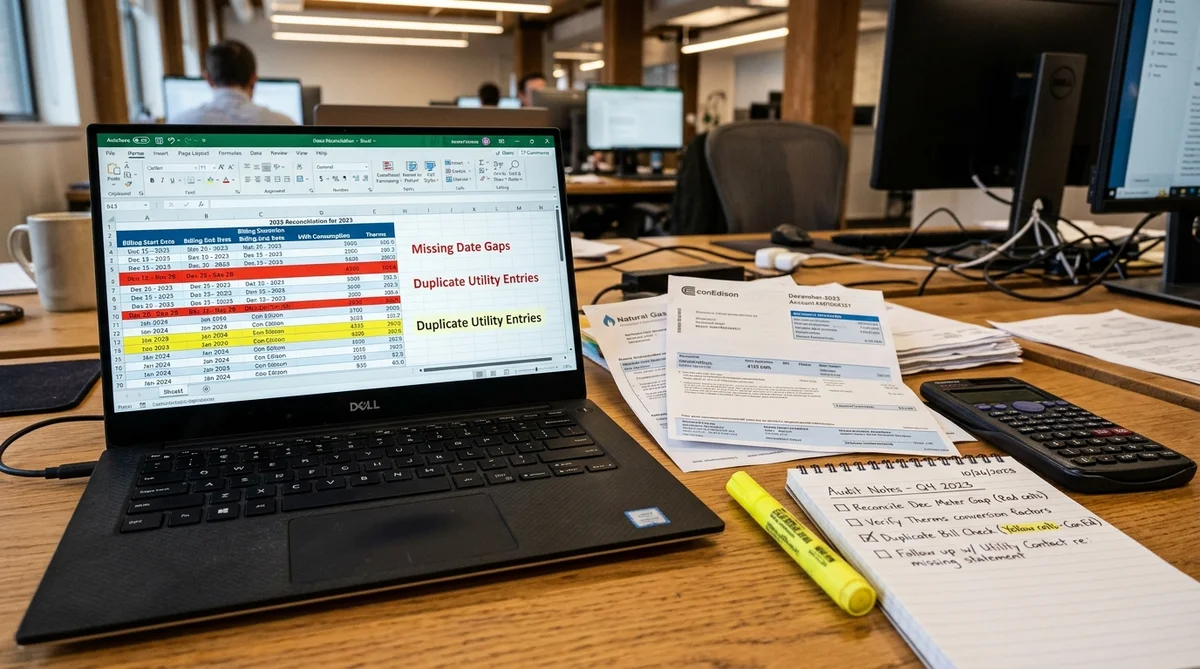
Duplicate records require more care than missing bills because deleting the wrong entry may remove legitimate consumption.
Suppose the same electricity bill was uploaded twice:
| Entry Record | Billing Period | Consumption | Impact |
|---|---|---|---|
| Record A | April 1–30 | 12,000 kWh | Legitimate bill entry |
| Record B | April 1–30 | 12,000 kWh | Unintended Duplicate |
If these entries represent the same utility bill, the total would incorrectly count 24,000 kWh for that period.
The correction is to retain the valid record and remove the unintended duplicate.
Check the Original Statements Before Deleting
Compare the account number, meter identifier, start and end dates, consumption amount, and total cost against the utility statements.
Be careful with utility rebills or corrections. A corrected account may show an adjustment, a replacement bill, or multiple records associated with the same billing period. A negative adjustment does not automatically mean that the entry is erroneous.
Determine which records represent the final, valid consumption for the period before deleting anything. If the utility's records do not make the correction clear, ask the utility provider to explain the billing history.
Remove the Confirmed Duplicate
Once the duplicate has been verified:
- Open the relevant property and select the affected meter.
- Open Manage Bills or the meter entries page.
- Select the checkbox next to the incorrect duplicate entry.
- Click Delete Selected Entries.
- Review the remaining records and confirm that legitimate consumption is still represented.
- Click Save Bills.
- Run the error checker again to verify resolution.
ENERGY STAR's How to Get Utility Data into Portfolio Manager guide documents this process for editing and removing meter entries. Reference: ENERGY STAR Utility Data Entry Guide.
What If the Dates Overlap but the Bills Are Different?
Do not delete one solely because Portfolio Manager flags an overlap.
Compare the original billing periods and determine how the dates were recorded. The utility may have issued a corrected statement, or the entries may have been imported from different sources with inconsistent date conventions.
Correct the entries to reflect the valid source records and the meter's actual coverage. If the underlying records are ambiguous, obtain clarification before changing consumption figures.
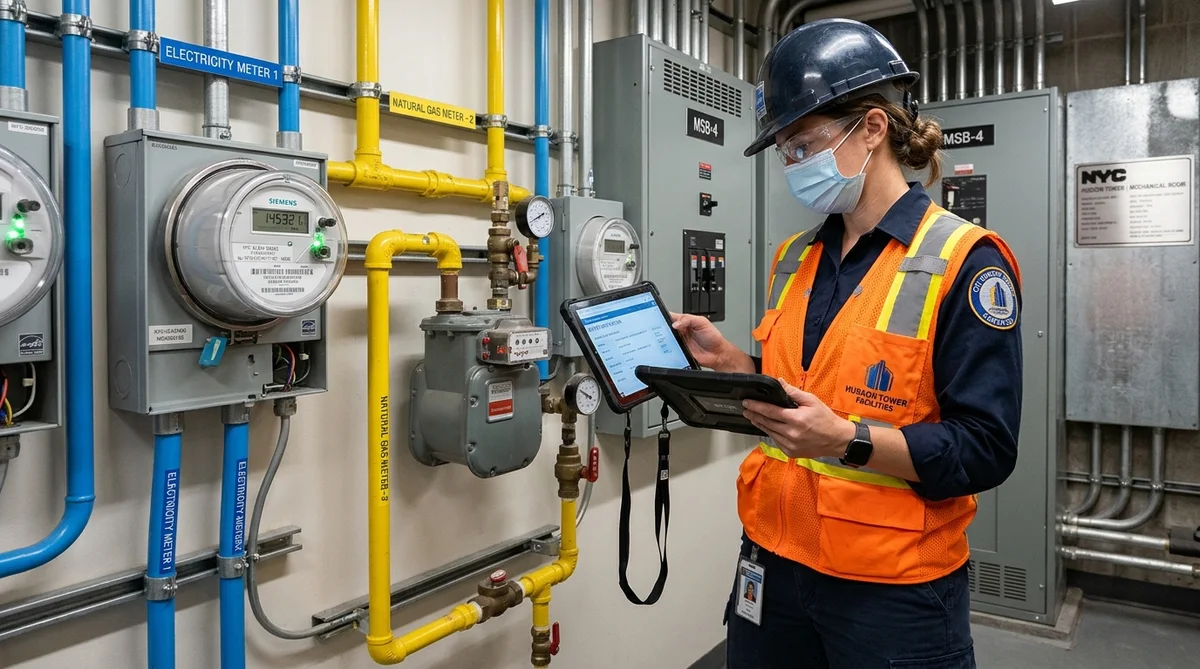
Step 4: Check Meter Start and Stop Dates
Configuration Alert
Mismatched Service Dates vs. Bill Intervals
Sometimes, the bills themselves are complete, but Portfolio Manager is configured with incorrect dates for when the meter became active or inactive.
For example, a natural gas meter may have billing records through December 31, but its recorded inactive date is November 30. The final bill may then fall outside the meter's defined active period.
Review the meter's start and stop dates and compare them with the actual service history.
If the meter served the property throughout the reporting year, ensure its configuration reflects that period. If a meter was installed, removed, or replaced during the year, the dates should reflect the actual change.
Also check whether a replacement meter has been added as a separate meter. When equipment changes, it is important to distinguish the new meter from the former one while ensuring that valid consumption is not omitted or counted twice.
Do not extend a meter's dates simply to suppress an alert. The configuration should accurately describe when that meter served the property.
Step 5: Confirm You Have 12 Full Calendar Months
Correcting gaps and overlaps is not the only requirement for a reliable annual report. The reporting period also needs complete calendar-year coverage.
Portfolio Manager defines a full month as including both the first and last days of that month. When utility billing periods run from the middle of one month to the middle of the next, 13 bills may be needed to cover 12 full calendar months.
For example, a reporting year covering January 1 through December 31 may require a bill that starts before January 1 and ends after December 31, alongside the other monthly bills, if billing dates do not align with calendar months. The relevant entries must collectively cover the reporting dates.
There are exceptions for meters that begin or stop operating during the reporting period and for delivered fuels such as propane. The meter's active dates and applicable Portfolio Manager rules determine how those cases are handled.
Portfolio Manager also flags an energy meter entry longer than 65 days because that can prevent weather-normalized metrics from being calculated. Where a long bill spans multiple months, follow the applicable guidance for separating the consumption into entries, using a defensible allocation rather than an arbitrary split. See ENERGY STAR Portfolio Manager Glossary — Data Quality Alerts.
Step 6: Make Sure the Correct Meters Are Included in the Metrics
A property can have complete meter records and still produce incomplete results if the wrong meters are selected for its metrics.
In the property's Energy tab, review the meter selection settings and use Change Meter Selections to confirm which meters contribute to the reporting calculations.
Energy Source Representation
Confirm that every relevant energy source (electric, gas, steam, fuel oil) is represented.
Building Meters Included
Verify that all legitimate meters serving the building are included as appropriate.
Aggregate vs. Sub-Meters
Ensure the same consumption is not included through both an aggregate meter and its individual component meters.
Property Boundary Accuracy
Check that meters serving another property or lot are not inadvertently included.
Replaced Meters Configuration
Confirm that replaced or inactive meters are configured consistently with actual service history.
Portfolio Manager supports aggregate meters that combine multiple meters of the same fuel type. This can be appropriate for certain properties, but owners must avoid reporting the same underlying consumption twice through both the aggregate total and individual records in the calculated metrics.
For NYC Local Law 84, whole-building consumption needs to be reported for the individual building identified by its Building Identification Number (BIN). Owners should also ensure that relevant tenant and base-building energy use is included in the correct building record. Reference: NYC DOB — Benchmarking Requirements.
A Practical Example: Correcting an NYC Office Building's Electricity Data
Consider a hypothetical 80,000-square-foot office building preparing its annual benchmarking report.
The error checker identifies an overlap in the electricity meter. On review, the property manager discovers that the March utility statement was entered manually and then imported a second time during a spreadsheet upload.
Both entries show 18,500 kWh for the same billing period.
The manager checks the original utility statement, confirms that the consumption was counted twice, deletes the duplicate entry, and saves the remaining record.
The error checker then identifies a gap in September. The manager locates the missing utility bill, enters the dates and usage as shown on the statement, and saves the meter history again.
Finally, the manager confirms that the electricity meter covers the required reporting period and that no other meter or aggregate record duplicates the same consumption.
This workflow addresses two different errors: excess consumption caused by duplication and missing coverage caused by an omitted bill. Correcting both makes the annual energy data more reliable before submission.
Final Validation Before NYC LL84 Submission
After correcting the records, run the data error checker again and review the full property, not just the meter that originally triggered the warning.
Confirm that each relevant meter covers the required dates and that no duplicate consumption remains. Review property characteristics, meter selections, and reported annual totals. If correcting the entries causes the EUI to change substantially, investigate whether the revised figure is consistent with the property's actual energy use.
For NYC owners, the annual LL84 benchmarking deadline is generally May 1, but the relevant calendar year and current filing instructions should always be confirmed. The city advises owners to resolve data errors and share the completed property information with NYC at least 15 business days before the deadline.
If an error remains unresolved or the data is unavailable, the NYC Sustainability Help Center can provide benchmarking assistance. ENERGY STAR's Portfolio Manager help resources are also useful when the error involves meter configuration or platform behavior.
Common Mistakes to Avoid
Mistake 1
Deleting Legitimate Bills Due to Overlap Alerts
The most damaging correction is deleting a valid utility bill because its dates overlap with another entry. Some overlaps arise from genuine duplicate imports, but others result from corrected bills, billing adjustments, or inconsistent date records.
Mistake 2
Unsubstantiated Estimates to Clear Alerts
Another mistake is filling gaps with estimated values without identifying them as estimates or documenting the basis. A complete-looking record is not necessarily accurate.
Mistake 3
Overlooking Meter Selection & Aggregate Settings
Finally, owners sometimes correct the meter entries but forget to check meter selections, aggregate meters, or the full reporting year. These checks are important because clean individual bills do not guarantee clean property-level metrics.
Conclusion
Missing and duplicate utility meter data are common reasons for inaccurate benchmarking records in ENERGY STAR Portfolio Manager. A gap means that dates are not covered by a bill; an overlap means that dates are covered by multiple entries. Duplicate consumption may also occur when a valid bill is imported more than once.
The most reliable correction process is straightforward: run the error checker, compare the meter history with original utility records, add missing bills, remove only verified duplicates, confirm meter start and stop dates, and validate the full reporting period and meter selections.
For NYC building owners, accurate meter data is a necessary foundation for credible Local Law 84 benchmarking. Fixing these errors before submission helps prevent distorted energy metrics and reduces the risk of having to revisit the report later.
Do not edit the data just to clear an alert. Correct the underlying record, preserve legitimate consumption, and verify that the final benchmark reflects the building's actual energy use.
Frequently Asked Questions
Open the property's Summary tab and run Check for Possible Data Errors. Review any meter-gap alerts, then open the affected meter and compare its entries with the original utility statements.
Open the property's Energy tab, select the affected meter, and access its meter entries or Manage Bills page. Select the confirmed duplicate, click Delete Selected Entries, save the changes, and run the error checker again.
Overlaps occur when the same date is covered by multiple billing entries. This can happen because of duplicate imports, incorrect dates, corrected utility statements, or inconsistencies between data sources. Compare the source bills before making changes.
Portfolio Manager generally needs 12 full calendar months of data for applicable metrics. If bills run from mid-month to mid-month, 13 bills may be needed to cover a complete calendar year. Exceptions can apply when a meter starts or stops during the year or the fuel is delivered periodically.
Yes. Portfolio Manager warns about meter gaps and overlaps and does not calculate an ENERGY STAR score or EUI for a period with those unresolved date errors. Other data-quality problems may also prevent some metrics from being calculated.
Not automatically. A negative entry may reflect a billing correction or adjustment. Compare it with the original and revised utility statements and establish which entries represent the valid final consumption before deleting anything.
For energy meters, Portfolio Manager flags an individual entry longer than 65 days because it prevents weather-normalized metrics from being calculated. Follow the applicable guidance for splitting a long billing period into separate entries and use a defensible allocation of consumption.
Yes. NYC requires covered buildings to report annual whole-building energy consumption in Portfolio Manager. Gaps, overlaps, duplicate entries, and incorrect meter selections can distort the reported data or interfere with required metrics.
The NYC Sustainability Help Center provides assistance with Local Law 84 benchmarking and data-quality problems. Portfolio Manager's official help and training resources can also help resolve meter-entry and platform issues.
You may also like